Always-on · SwiftUI · iPad

A calm, living
dashboard for
your iPad.

Glance quietly rotates through your photos, the weather, tech news, fresh YouTube videos, and your open pull requests — full-screen, always on, beautifully understated.

📷 Photos 🌤 Weather 📰 Hacker News ▶️ YouTube 🔀 GitHub PRs 🎵 Now Playing
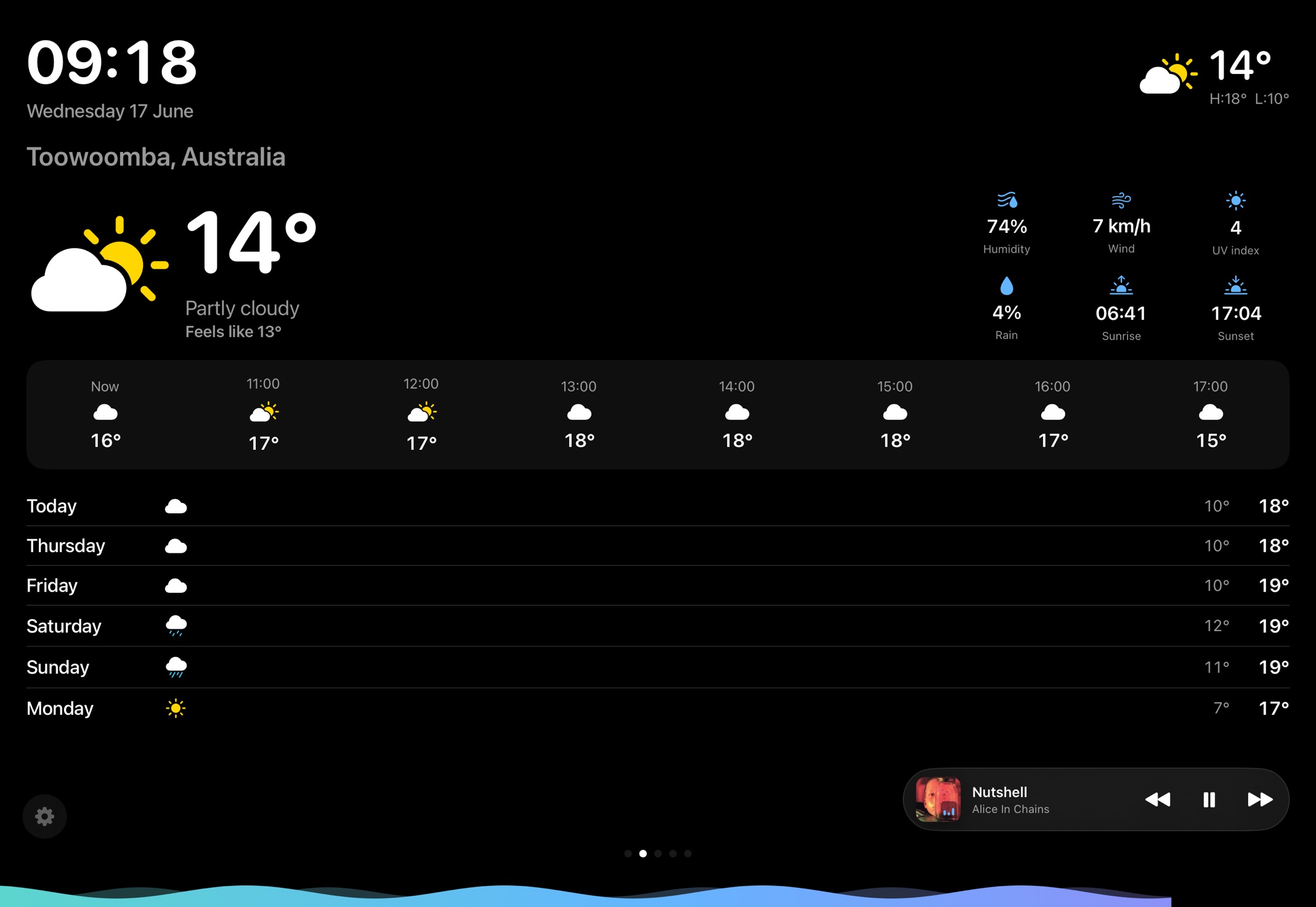
Glance weather scene on an iPad
What it shows

Six glanceable scenes, on a gentle rotation.

Each scene fades in, lingers, and gives way to the next. Empty ones quietly skip themselves.

📷

On-device photos

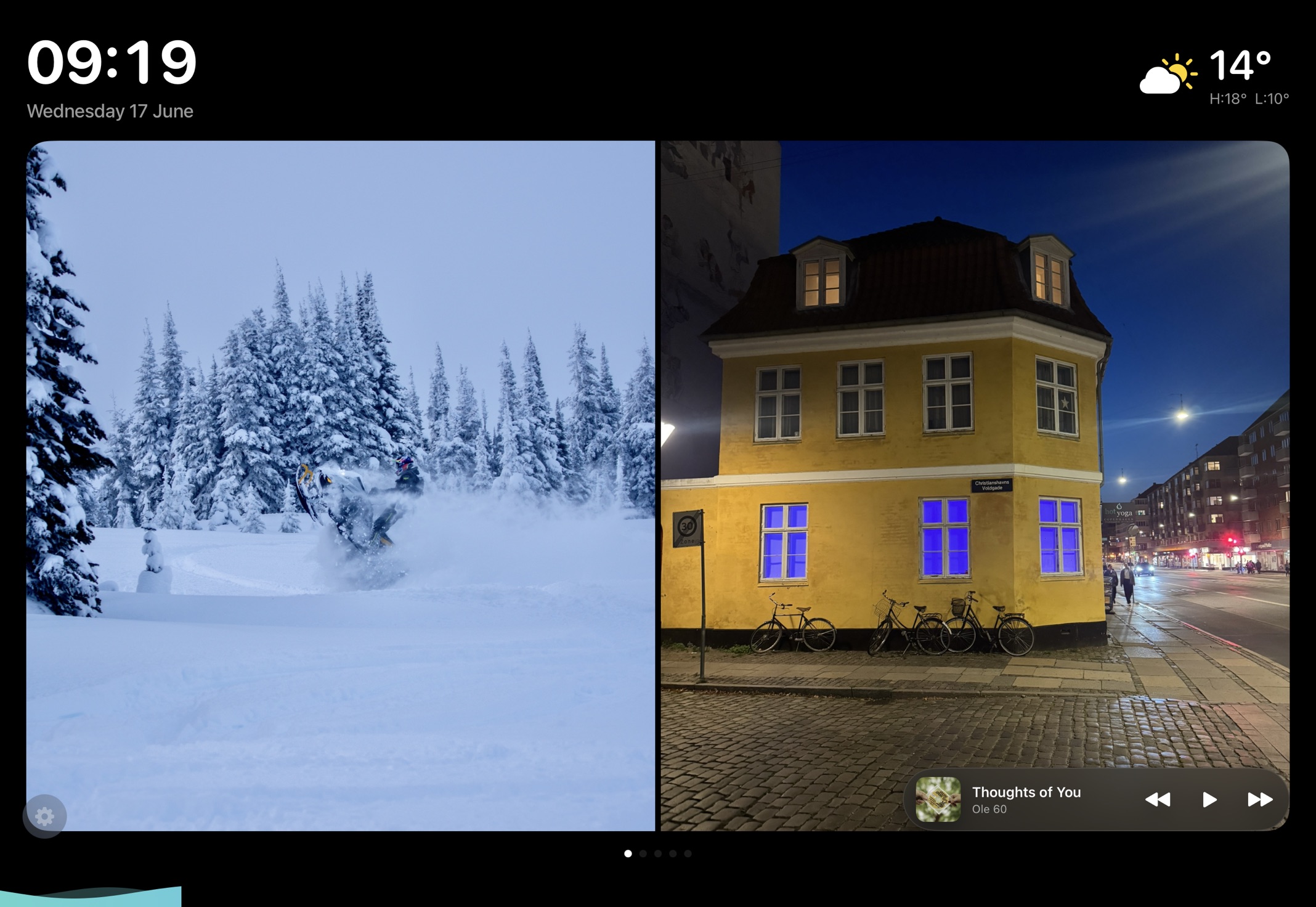
Your library, straight off the device via PhotoKit. Portrait shots pair up side-by-side — no black bars, no cloud upload.

🌤

Weather

Search any city. Current conditions, feels-like, UV, an hourly strip and a multi-day forecast. No API key needed.

📰

Hacker News

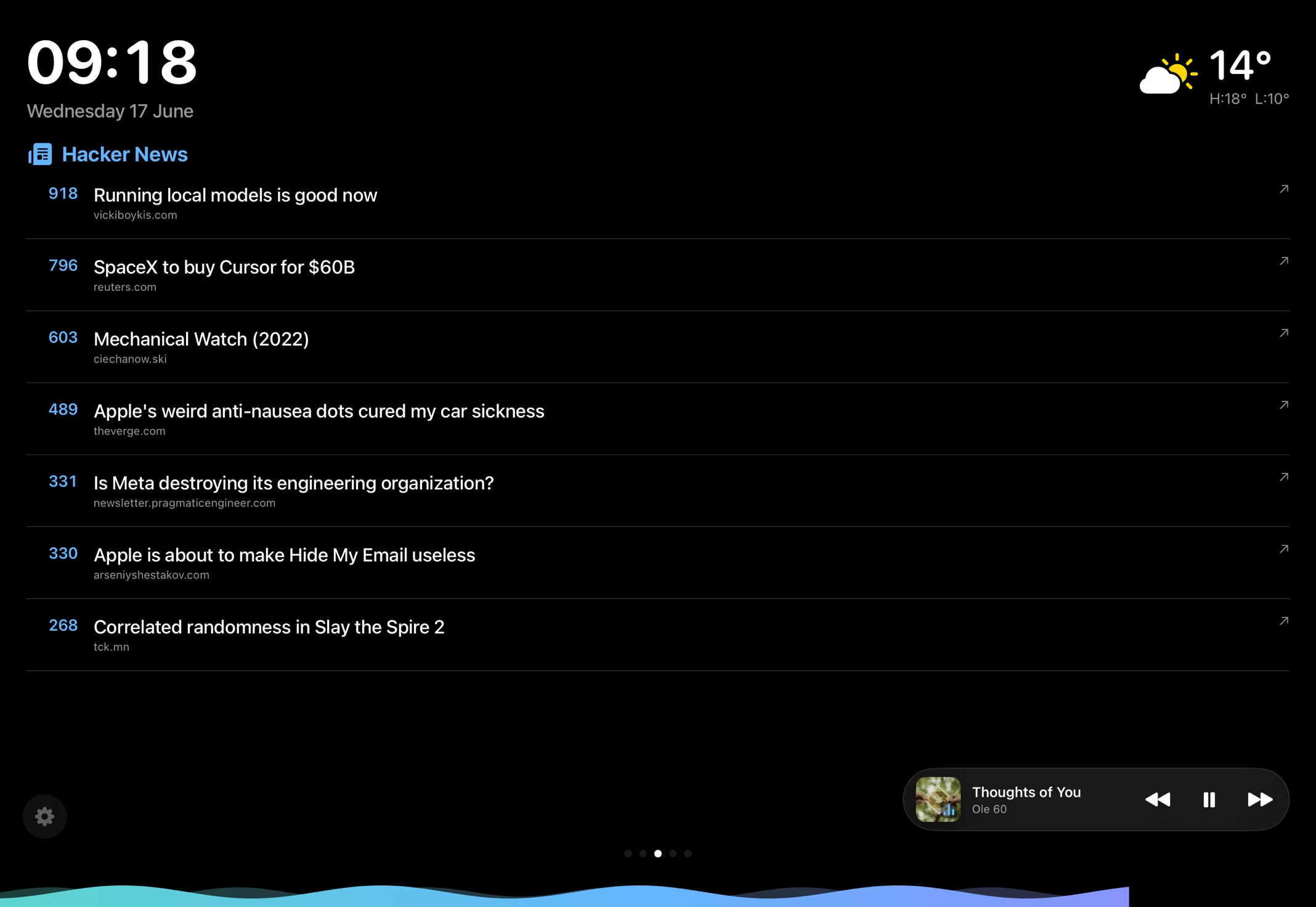
The front page of tech and dev, each story tappable to open the article or its discussion.

▶️

YouTube

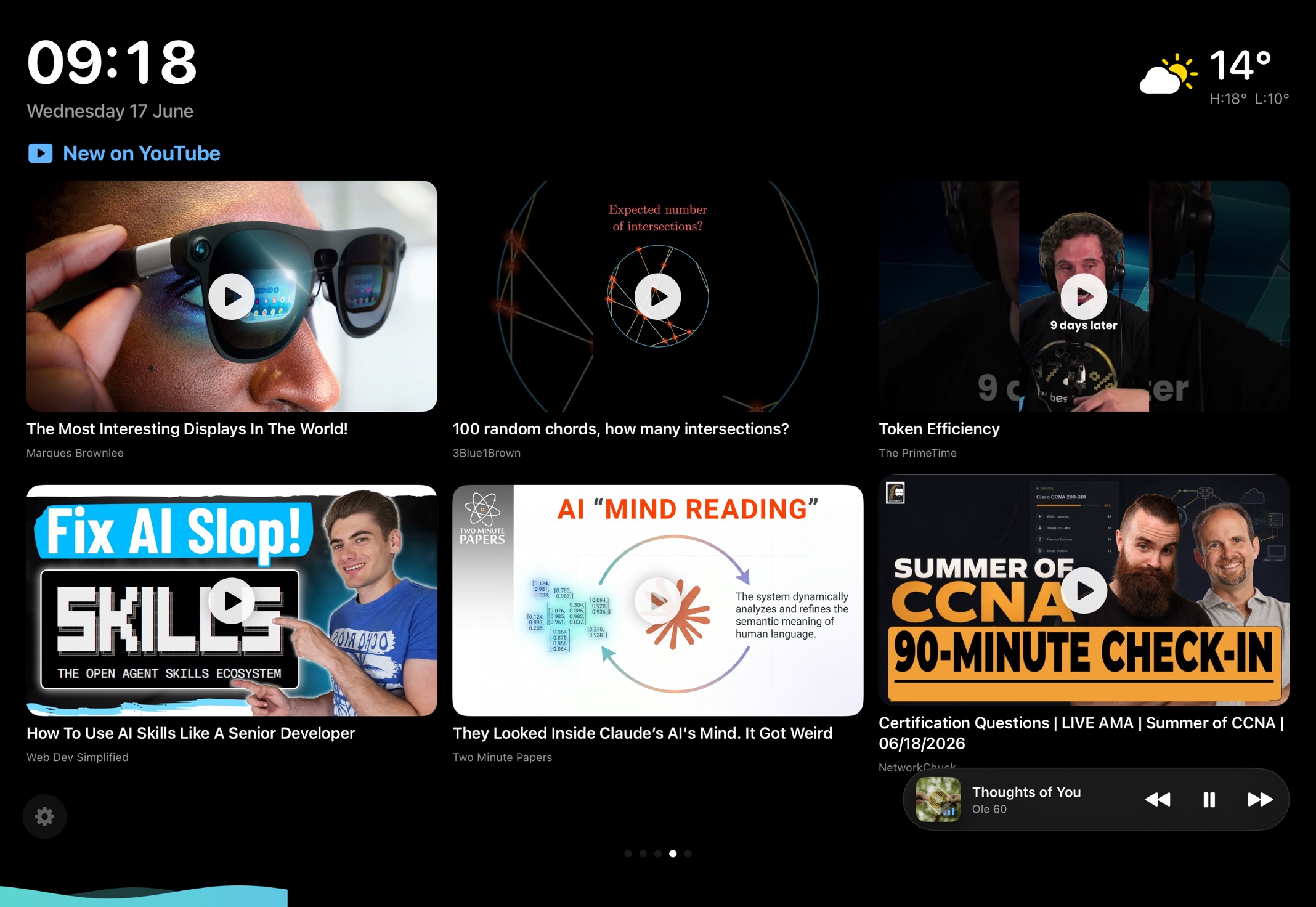
The newest videos from the channels you pick. Crisp 16:9 thumbnails, tap to play — never autoplays.

🔀

GitHub PRs

Your open pull requests across every repo, always in view so nothing slips through.

🎵

Now Playing

Whatever's playing in Apple Music — artwork, track, and play / skip controls, right on the dashboard.

In the wild

Designed to be looked at all day.

Dark, quiet, and readable from across the room — with a soothing wave that tracks the time to the next scene.

The details

Quiet by design.

Always awake

The screen never sleeps while Glance is open — no Guided Access hacks.

Tap & arrow keys

Sides switch scenes, top / bottom flip photos — by touch or Magic Keyboard.

Wave timer

A flowing gradient wave fills to mark the time until the next scene.

Fully configurable

Toggle pages, search a city, manage channels — all in-app, stored on device.

Under the hood

No backend. No tracking. Yours.

Pure SwiftUI. Every fetch happens on-device against free, open APIs — Open-Meteo, the Hacker News API, YouTube RSS, and GitHub. Settings live in UserDefaults; nothing leaves your iPad except the requests it makes for you.

Get started

Up and running in minutes.

Needs a Mac with full Xcode and an Apple ID for signing.

1

Clone & generate

Run the setup script — it installs XcodeGen and opens the project.

2

Sign & run

Pick your Apple ID team in Xcode, select your iPad, and press run.

3

Make it yours

Tap the gear to choose pages, search your city, and add channels.

# clone
git clone https://github.com/bradystroud/glance
cd glance

# generate the Xcode project & open it
./setup.sh

# then in Xcode: set your signing team,
# pick your iPad, and ⌘R

Give an old iPad a second life.

Free, open source, and MIT-licensed.

View on GitHub ↗